


Liberty VPN on Android TV with Happ
Connect to Liberty VPN on Android TV using Happ.
Source guide updated: 22 September 2026
App: Happ for Android TV
Screenshots are shared with the Russian guide. Some interface labels are in Russian; wording may vary by app version and language.
Before you start
- You need an active LibertyVPN subscription and access to your account on a phone or computer.
- Do not share your connection key publicly or show it in screenshots.
Install Happ
Install Happ from Google Play on Android TV.
Where to get your connection key
Copy your connection key — your personal subscription URL — from the Liberty VPN Telegram bot or your account. Then add it to the app using the instructions below. You do not need to open a separate connection page.
In the Telegram bot
Open your subscription in the Liberty VPN Telegram bot. In the “Your subscription” message, copy the complete link under “Connection key” without changing any part of it.
Alternatively, select “Connect” in the same message, choose your platform, and copy the key from the resulting message.
In your account
Sign in to your Liberty VPN account and open “Profile → Instructions”. Use the copy button beside the link.
The connection action on your subscription card on the home screen also opens these instructions. You can also copy the key from “Connection Settings”.
Do not share your connection key publicly or show it in screenshots.
Transfer your subscription to the TV
Local Import
- Install Happ on your phone and add the copied URL using the Android guide or the iPhone and iPad guide.
- Open
Local Importon the TV and leave the QR-code screen open. - Connect your phone and TV to the same Wi-Fi network.
- Scan the TV’s QR code in Happ on your phone, select your LibertyVPN subscription, and confirm the transfer.
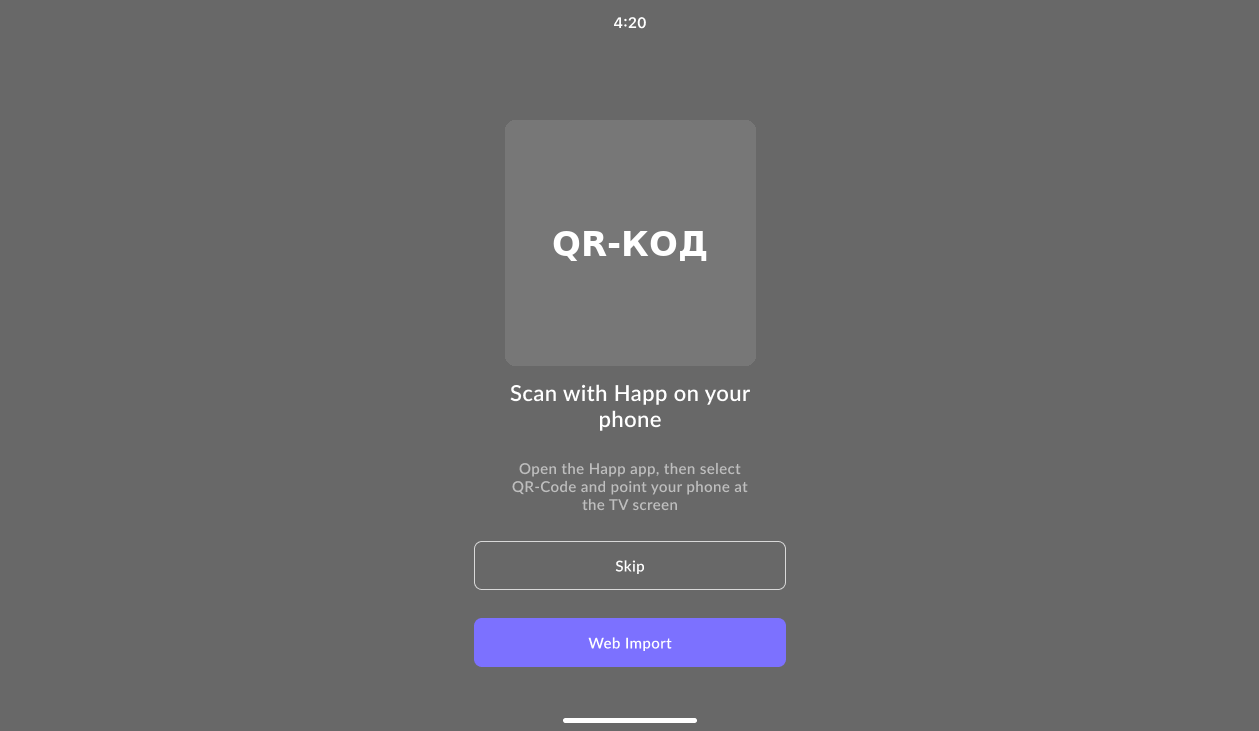
Web Import
- Select
Web Importon the TV. - Open
tv.happ.suon your phone or computer, or scan the TV’s QR code. - Enter the temporary code, paste the complete subscription URL without changing any part of it, and submit it.
- Leave the import screen open until the subscription appears in Happ on the TV.
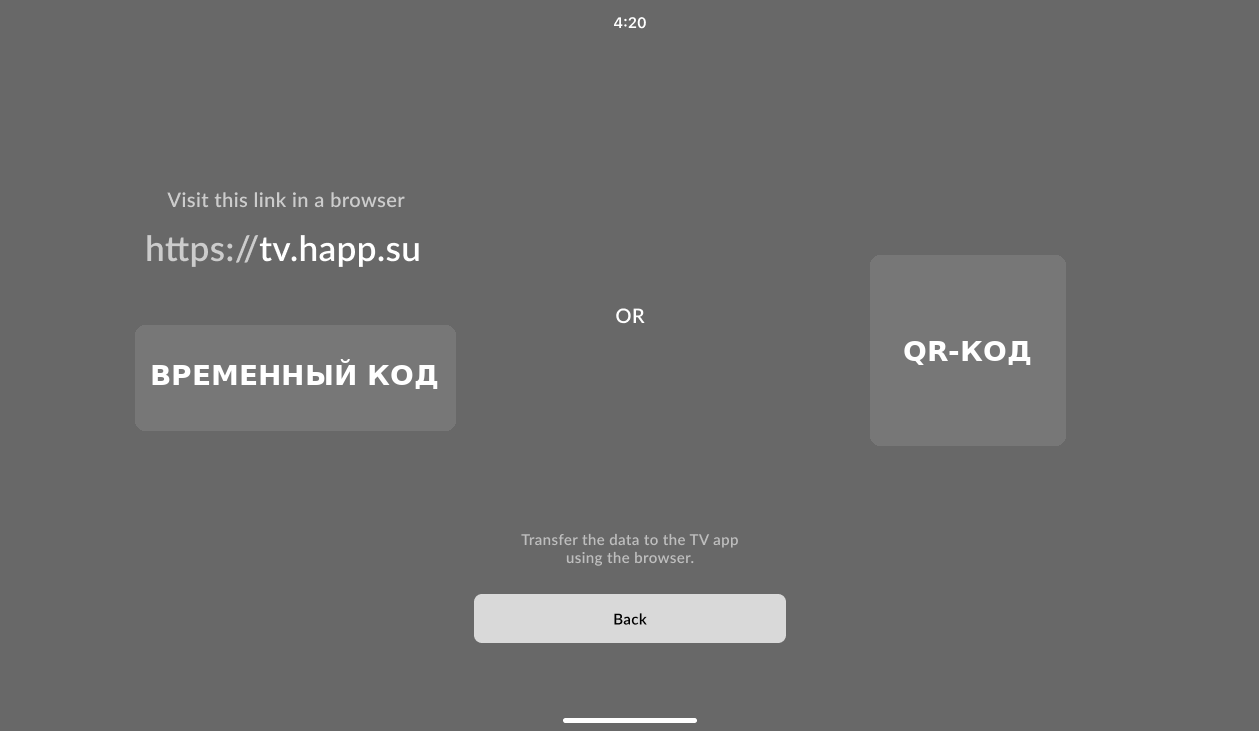
Connect
Wait for the server list to load, select a server, press the connect button, and approve the system VPN permission request.
Change the mode and routing
The modes are Auto and Default; the routing options are Auto, RU Direct, Full VPN, and No Routing. After changing a setting, update your existing subscription in Happ and reconnect.
Sources
Need help connecting?
Tell us which device you use and where you got stuck. Liberty support can help you connect.